
Dashboard
The Valkey Admin dashboard provides a comprehensive overview of your cluster’s health, performance, and key metrics at a glance.
Overview
Section titled “Overview”The dashboard is your central hub for monitoring cluster node activity, displaying real-time metrics, node status, and performance indicators.
Key Metrics
Section titled “Key Metrics”Stat Cards
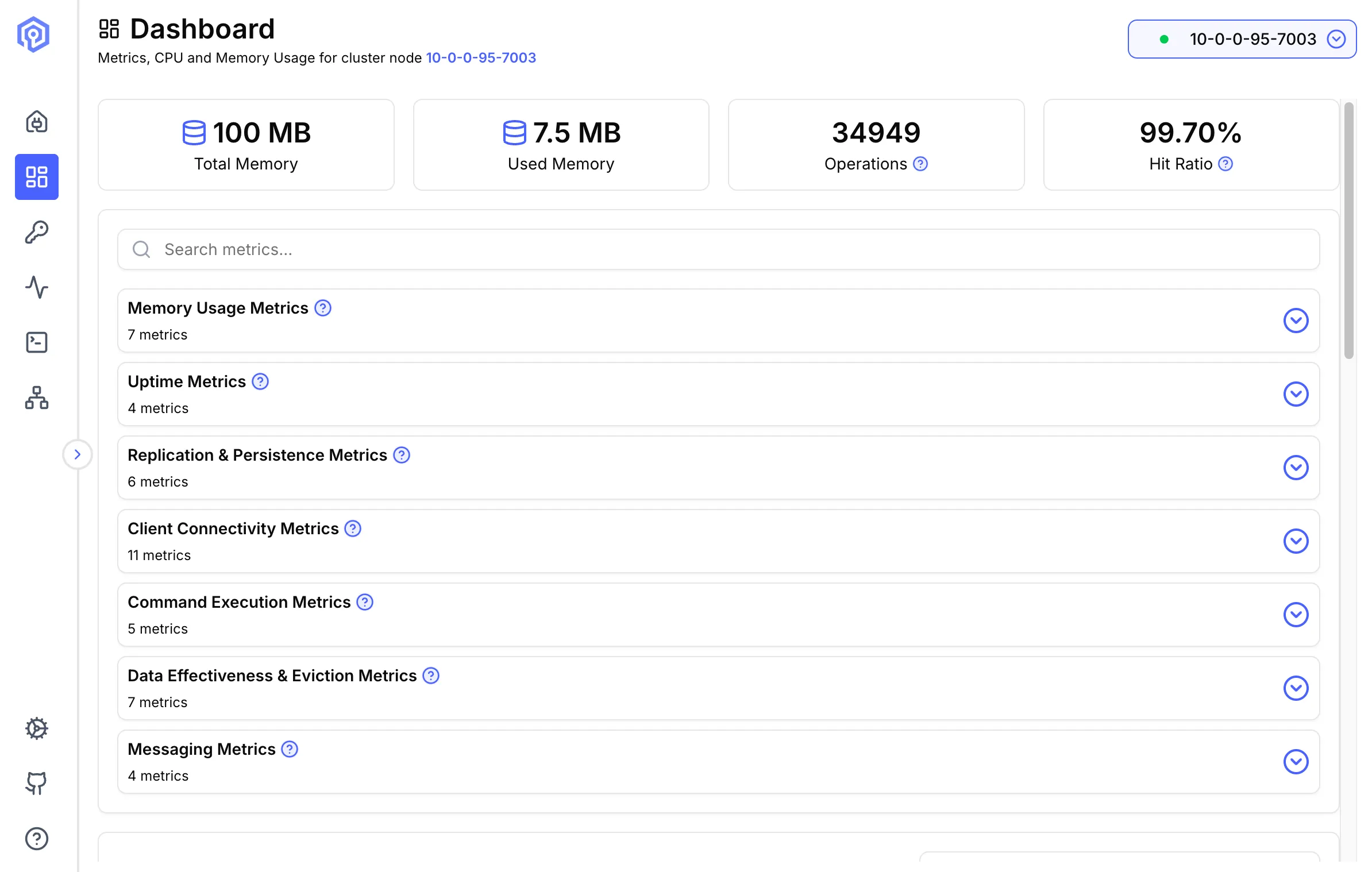
Section titled “Stat Cards”The top of the dashboard displays four summary cards for the connected node:
- Total Memory: The server’s configured
maxmemory(or total system memory if unbounded) - Used Memory: Current memory consumption
- Operations: Total commands processed
- Hit Ratio: Cache hit rate (keyspace hits vs misses)
Metric Groups
Section titled “Metric Groups”Below the stat cards, searchable accordion sections display detailed metrics from the Valkey INFO command:
- Memory Usage Metrics: Detailed metrics for tracking Valkey’s memory usage across data, scripts, functions, and peak consumption.
- Uptime Metrics: Tracks server uptime and script eviction to monitor overall system activity and availability.
- Replication & Persistence: Metrics that track database snapshots, data changes, and replication backlog health to ensure reliable syncing and persistence.
- Client Connectivity: Metrics tracking client connections, activity, and connection limits to monitor workload and health.
- Command Execution: Metrics showing command volume, failures, slow operations, and errors to evaluate performance and stability.
- Data Effectiveness & Eviction: Tracks key activity, expirations, evictions, and cache hit-rates to assess data efficiency and access performance.
- Messaging: Tracks Pub/Sub channels, patterns, and clients to measure real-time activity.
Use the search bar to filter metrics by name across all groups.
Real-Time Usage Metrics
Section titled “Real-Time Usage Metrics”The dashboard shows CPU and memory usage metrics at configurable intervals:
- Default: 1 hour
- Configurable: Adjust to see usage over 6H and 12H
Metrics and Anomaly Detection
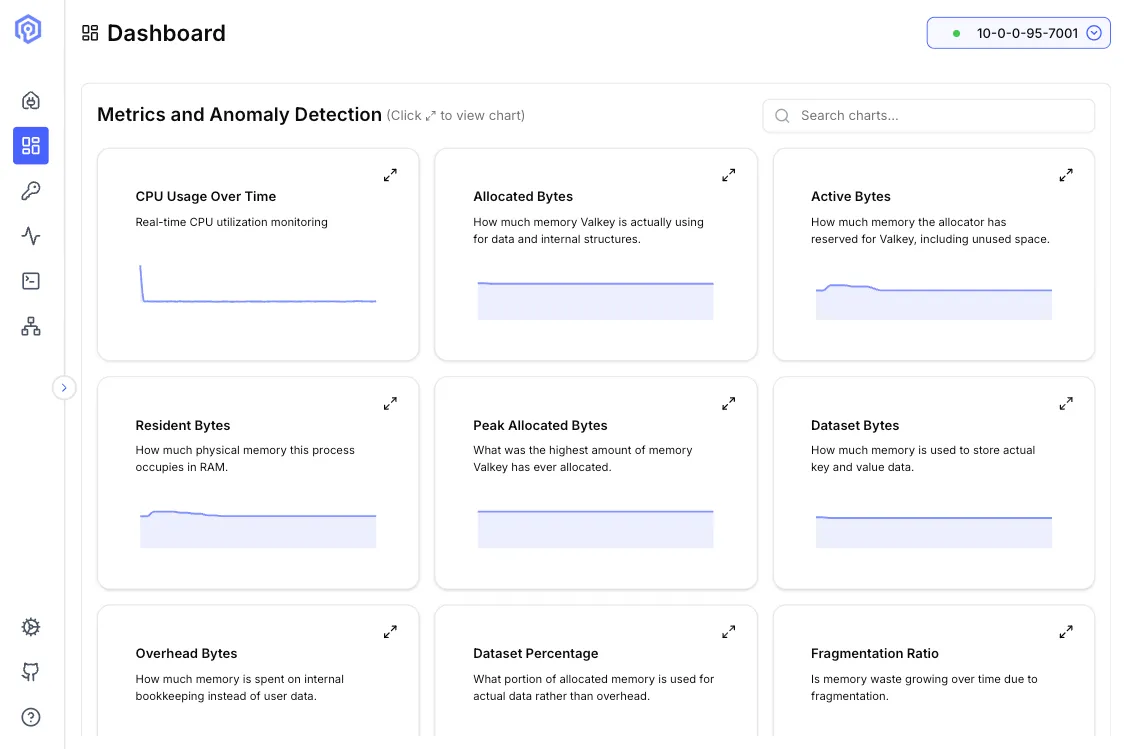
Section titled “Metrics and Anomaly Detection”The metrics view displays a grid of time-series charts, giving a detailed breakdown of CPU and memory behavior over the selected interval.
| Chart | Description |
|---|---|
| CPU Usage Over Time | Real-time CPU utilization monitoring |
| Allocated Bytes | How much physical memory is actively being used by data and internal structures |
| Active Bytes | How much memory has been accessed or touched by Valkey, including unused bytes |
| Resident Bytes | How much actual physical memory this process occupies in RAM |
| Peak Allocated Bytes | The maximum amount of memory jemalloc has ever allocated to Valkey |
| Dataset Bytes | How much memory is used to store actual Valkey data |
| Overhead Bytes | Memory spent on internal, non-data structures — Valkey’s own overhead |
| Dataset Percentage | Fraction of allocated memory being used for actual data |
| Fragmentation Ratio | A value growing over time may indicate memory fragmentation |
Anomaly detection highlights unusual patterns across these charts, making it easier to spot memory leaks, unexpected spikes, or fragmentation trends before they affect cluster performance.
Next Steps
Section titled “Next Steps”- Explore the Key Browser for managing your data
- Use the Send Command interface to execute operations
- View Cluster Topology for node relationships